![Profile Image Teal-1.png]](https://www.glaciergrid.com/hs-fs/hubfs/Profile%20Image%20Teal-1.png?width=40&height=40&name=Profile%20Image%20Teal-1.png)
By using tags, you can:
- Categorize data by region, team, equipment or any custom logic.
- Quickly filter tables to find what you need
- Enhance reporting and visibility across your system and team
The new Tags feature includes:
- Tags Screen – A dedicated screen to create, view, and manage tags
- Tags Column – A new column in the Equipment, Locations, and People screens
- Details Section – Tags now show on the Equipment Details and Location Details screens
- Tag Filters – You can now filter by tags in the Equipment and Locations tables
How to Create a New Tag
The Tags feature is only available on the web dashboard. It is not yet supported in the mobile app.
GlacierGrid Web App
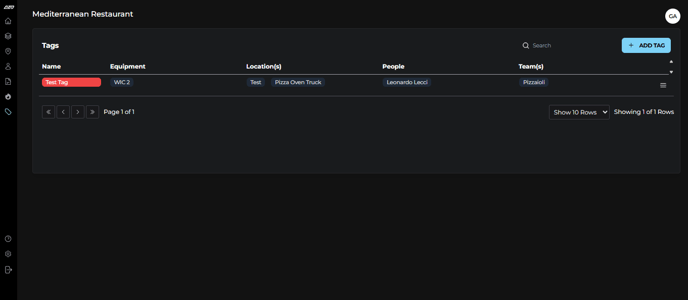
- Go to the Tags screen from the left-hand menu
-
Click + ADD TAG
-
Enter a tag name
-
Choose a color for the tag
-
Select the entities to associate with the tag:
-
Equipment
-
Locations
-
People
-
Teams
-
-
- Click Save to create your tag
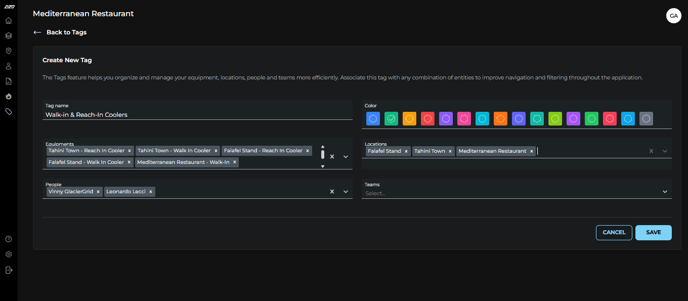
Note: You must select at least one entity to create a tag. You can associate as many items and types as you'd like.
How to Edit a Tag
-
Navigate to the Tags screen
-
Find the tag you want to update
-
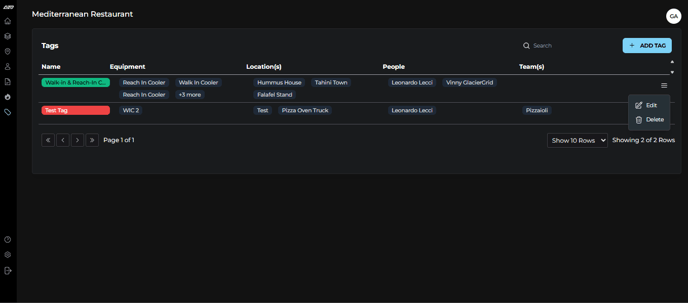
Click the overflow menu on the right side of the row
-
Select Edit
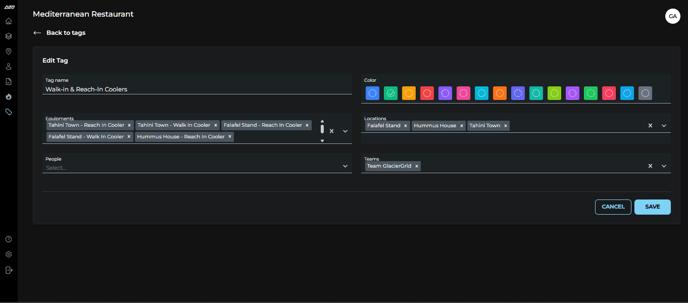
- Complete your updates
- Click save to apply changes
How to Delete a Tag
-
Navigate to the Tags screen
-
Find the tag you want to delete
-
Click the overflow menu on the right side of the row
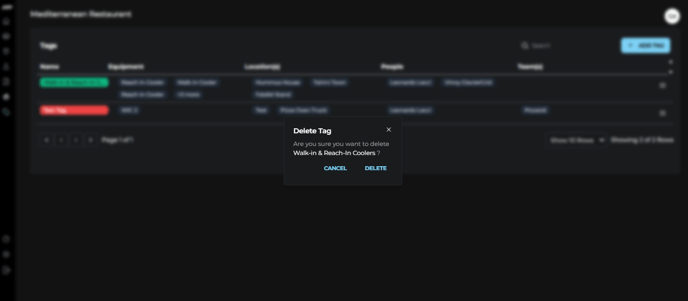
- Select Delete
- Confirm deletion
Need Help?
If you have any questions or need assistance using Tags, please reach out to us at support@glaciergrid.com. We're happy to help!