![Profile Image Teal-1.png]](https://www.glaciergrid.com/hs-fs/hubfs/Profile%20Image%20Teal-1.png?width=40&height=40&name=Profile%20Image%20Teal-1.png)
This article explains:
-
What tables can be downloaded
-
Who can download each table
-
What information is included in each export
-
How to download a CSV file
-
How this feature supports deeper reporting and analysis
Why Table Exports Are Useful
- Strengthen access control and user management
- Operational Visibility
- Accelerate reporting workflows
- Enable deeper data analysis
- Enhance cross-team collaboration
- Support audits and compliance requirements
- Improve decision-making across multi-site operations
If you need to build more advanced reports, you can also combine these exports with GlacierGrid’s reporting tools, review What kind of reports can I download? and How do I add, download, or edit reports?
What Tables Can Be Downloaded?
Below are the tables available for export and which roles have access.
- Equipment Table
- Available to: Account Owner, Admin, Manager, Viewer
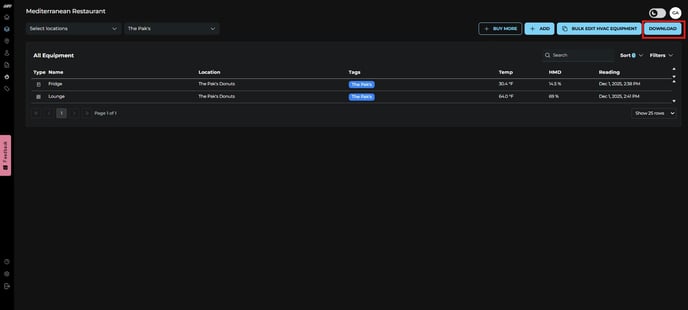
- The Equipment table gives you a full list of all monitored equipment across your locations. It includes the equipment type, its name, the location, any tags applied to it, and the latest temperature, humidity, and reading timestamp.
- Locations Table
- Available to: Account Owner, Admin, Manager, Viewer
- The Locations download provides key information about each site in your account, including the location name, tags, address, any active overrides, and the gateway or hub IDs installed at that location.
- People Table
- Available to: Account Owner, Admin, Manager
- The People table includes all users in your account, showing their names, roles, assigned teams, tags, invitation status, and notification preferences.
This export is valuable for user management, compliance, and checking whether everyone has the right level of access.
- Teams Table
- Available to: Account Owner, Admin, Manager
-
The Teams table shows all teams created in your account, including the team name, which locations they manage, associated tags, and the number of users assigned to each team.
This export helps you review team structures and ensure the right people are assigned to the right locations.
How to Download Tables (Step-by-Step)
-
Navigate to the dashboard screen containing the table you want to download
-
Equipment
-
Locations
-
People - for both tables People & Teams
-
-
Click “Download” in the upper-right corner of the screen.
-
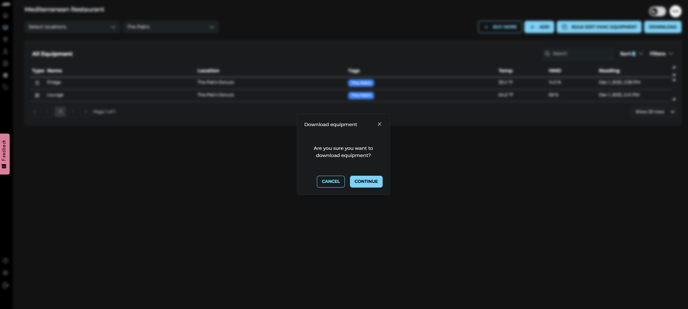
A confirmation modal will appear. Click Continue.
-
Your CSV file will download automatically to your device. The file name will match the table type (e.g. equipment.csv, locations.csv).
If you run into any issues downloading your tables or have questions about your data, please reach out to our team at support@glaciergrid.com, we're here to help.